
Observatory administrators can choose whether users in the system have access to all schools in the account or just specific schools that they have been assigned.
The permissions listed in the Permissions tab control exactly what your user can do with the schools they have been assigned. You can grant someone access to all schools, but restrict the individual areas they can access for assigned schools, via the Permissions tab.
Selecting the Setting
To grant a user access to schools in your organisation, click Settings (cog icon) and click Users. Select the name of the relevant staff member. If the staff member doesn't exist yet, you can set them up by using the Create New User option. From here, click Permissions.
There is a School Visibility setting here which allows you to toggle whether the user can access just specific schools assigned to them or all schools in your organisation.
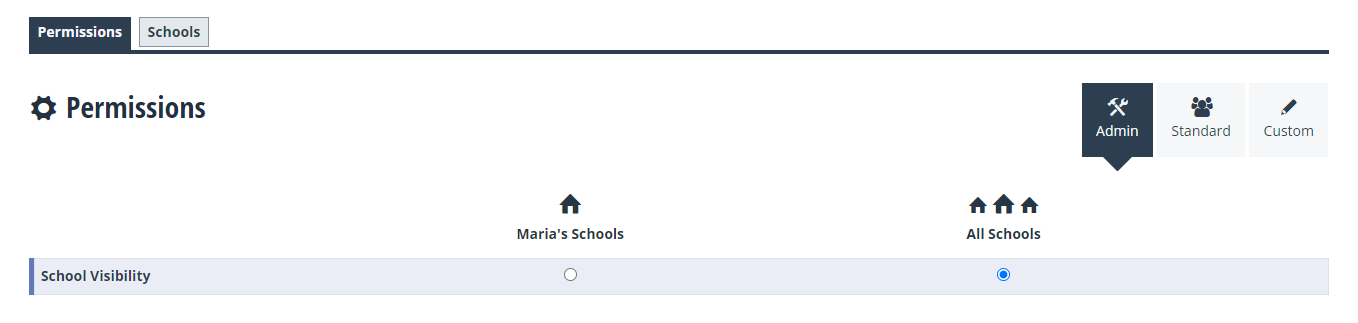
If you want them to see all schools, then you can select All Schools.
If you only want them to access specific schools, then you should select the other option, which will be their name, followed by Schools. For example, Maria's Schools.
This will then mean that your user can only see schools they have been specifically assigned. This is explained in the next part of the guide.
Assigning Specific Schools
To assign specific schools to a user click the Schools tab. This will list any schools that the user is already linked to. If there are none, then the below message will be displayed.

To add a school, click Add Schools, place a tick in the box next to the relevant school(s) and then click Finished Editing. The selected school(s) will then be linked to that user.

You can remove a school by clicking the cross on the right-hand side. Or completely clear the school list for a user by clicking Remove All.
That's it! Your user will now have access to data and information for only the schools you have specifically assigned.