
Actions are tangible items you can add to Observatory to track all the tasks related to supporting your schools in your Organisation. These actions can be standalone or linked to specific visit records.
All actions related to a school are stored in one place, making it easy for you to monitor upcoming or overdue actions and to complete your actions as you go along. No more looking through word documents to try and keep on top of everything.
Please Note: Visits & Actions are only available on Observatory premium. Non-premium members can still record notes for schools. If you wish to get in touch about signing up to use Observatory premium, please contact perspective@angelsolutions.co.uk.
Who Can View Actions?
Actions can be viewed by:
- Observatory Administrators
- Users with access to the visit the action is assigned to
- Users with access to the school via the Schools tab in their permissions area and the visits module (at least 'Read' access).
The Dashboard
The actions dashboard is a central location in Observatory that aggregates the actions you see at a school level.
On this page, you can see actions for all schools you have access to, or you can narrow down your search using one of the many filters on that page.
The dashboard is key because it means you can access everything you need without navigating through each school's dashboard.
You can use the dashboard to create new actions at any time. For more information on actions, please refer to this help guide.
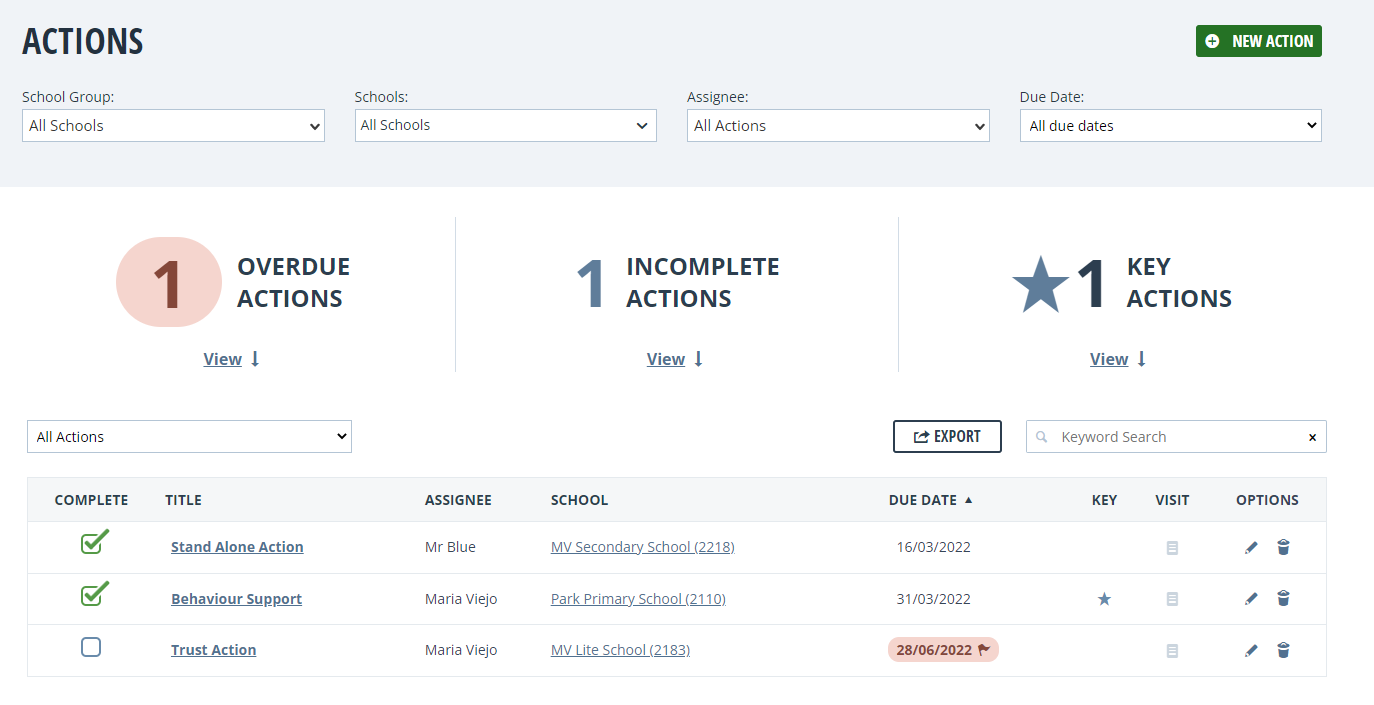
You'll notice that the dashboard draws your attention to some of the core, helpful information you need, allowing you to see it at a glance.
You can use the View option under those three widgets to quickly filter the page for anything that fits that criteria. For example, clicking View under Overdue Actions will apply a filter on the below list of actions for ones that are overdue.
Filters
The filters across the top of the page are your general actions filters and allow you to refine your search for schools, groups of schools, assignees or dates.

The filter option on the left-hand side of the page lets you refine the actions based on the general filters you have already applied further up.
So, for example. You may use the top filters to refine your search to just five schools. You would then use the dropdown on the left to filter for specific criteria for all actions assigned to those five schools, such as Key or Incomplete.

You can also use the Keyword Search filter on the right-hand side to search for a specific word or phrase.
You can perform actions on your actions, such as delete or edit, using the bin and pencil icons adjacent. You can also export all your filtered actions by clicking the Export button.