
Does your organisation subscribe to our Visit module? In that case, your administrators can use the settings area of the system to manage things like visit categories and whether information like previous actions is included in your default visit report.
Quick Steps
- Click the Settings (cog) icon on your main toolbar.
- Click Visits & Notes.
- Use the tabs on this page to select the relevant category.
- Click Create.
- Enter the category name and a description, if needed.
- Click Create.
Need More Detailed Help?
Providing you are set as a Visits Administrator, click the Settings (cog icon) and click Visits & Notes to access this area.
Visit Categories
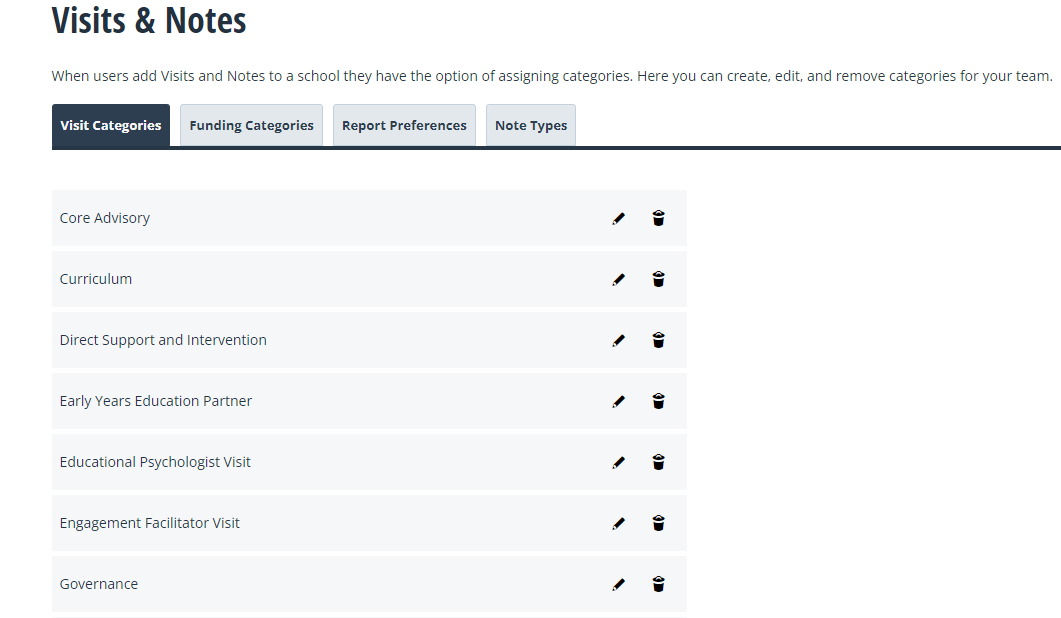
A Visit Category determines the type of visit you are completing. The Visit Categories tab allows you to edit and maintain any categories inside your system.
We have added some default options to give you a starter for ten. However, if you have your own terminology, you can remove our options and create your own.
To create a new category, click Create. A field will appear, allowing you to give the category a name and a more detailed description. When you have completed the fields, click Create again.
Your new category will then appear in the list. To edit the category, click the pencil icon. To delete it, click the bin icon. You can continue to make further categories by repeating the above steps.
Funding Categories
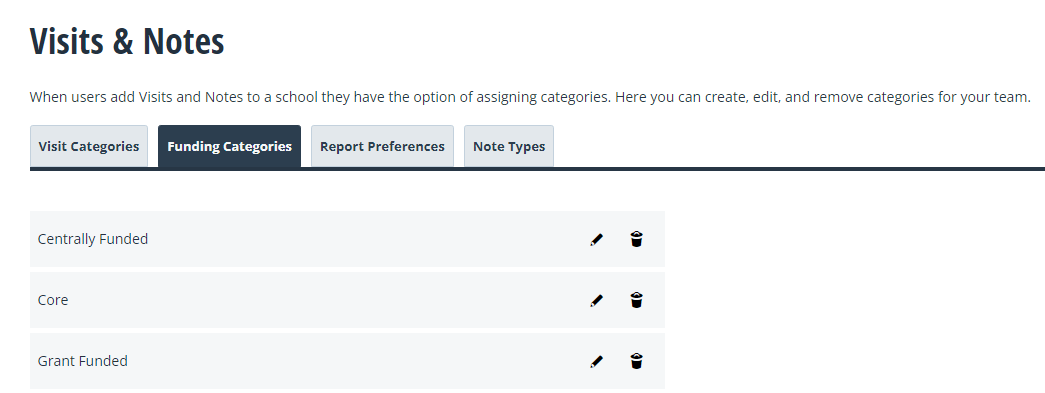
The Funding Categories tab works the same way as the Visit Categories tab and allows you to edit and maintain any funding categories inside your system.
We've added in some default options for you to get you started. You can delete any options that are not relevant to your Organisation and add in any new ones.
To create a new category, click Create. A field will appear, allowing you to give the category a name and a more detailed description. When you have completed the fields, click Create again.
Your new category will then appear in the list. To edit the category, click the pencil icon. To delete it, click the bin icon. You can continue to make further categories by repeating the above steps.
Report Preferences
The Report Preferences tab allows your admins to set the default status of actions on your visit reports. When a user downloads a visit report individually, they will be able to select these preferences at the time, but by default, their options will be set to what you define here.
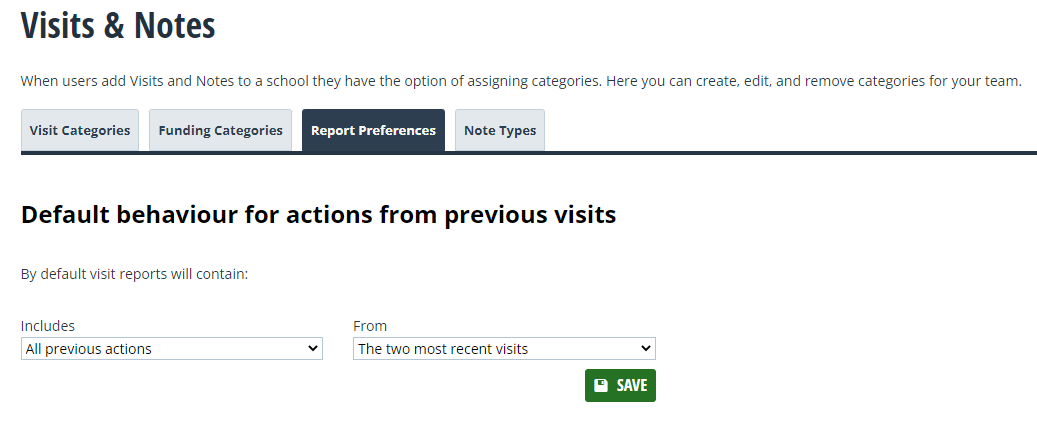
Simply use the two dropdowns to toggle how you want your visit reports to show actions by default. You can control the number of actions that appear as well as how far back across previous visits the system searches when showing those actions.
Remember to click Save when you have made your selection!