
Actions are tangible items you can add to Observatory to track all the tasks related to supporting your schools in your Organisation. These actions can be standalone or linked to specific visit records.
All actions related to a school will be stored in one place, making it easy for you to monitor upcoming or overdue actions and to complete your actions as you go along. No more looking through word documents to try and keep on top of everything.
We've made these very flexible, giving you the freedom to create 'key actions' that are essential and high priority, as well as tasks that need completing later. You can be as detailed as you like.
Please Note: Visits & Actions are only available on Observatory premium. Non-premium members can still record notes for schools. If you wish to get in touch about signing up to use Observatory premium, please contact perspective@angelsolutions.co.uk.
Creating an Action
You can create actions in two ways either;
- When adding or editing a visit.
- Directly via a school dashboard.
Creating an Action in a Visit
If you haven't already, check out our Visits guide for more information on creating and recording visit records in Observatory.
When you have set up your visit, click Create Action
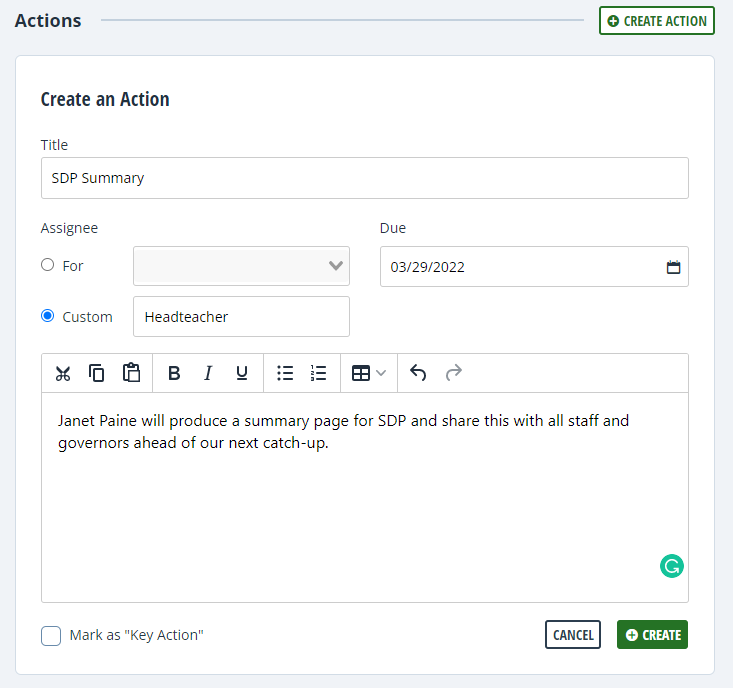
Give your action a title and select the member of staff responsible by using the Assignee section.
By default, your assignees will be staff members in your Observatory account; however, if the person responsible for the action works at the school or is not an Observatory user, click Custom and type their name in manually.
Use the date picker to select a deadline for your action.
Add any additional detail about your action to the large text box. Like visits, you can add as much or as little detail here as you require. It's just like Word. You can also add tables and formatting.
To mark an action as a higher priority, you can tick the Mark as "Key Action" box. This is a simple internal flag for you to identify actions that may be more urgent, impactful, or have a higher priority than others.
When you have finished, click Create.
When an action is created, it sits in the Action section. You can tick the box on the left-hand side to mark it as complete.

If necessary, you can edit or remove actions by clicking the pencil or bin icon where appropriate.
You can download your visit report, including any actions you've assigned. You will also have the option to download the report with any:
- Previous actions
- Previous actions that are incomplete
- Previous actions that are complete
- No previous actions
You can also choose the date ranges, e.g. all previous actions from the last two visits.
Creating a Standalone Action
To create an action for a school not attributed to a visit, navigate to Schools (on the blue bar at the top) and select the correct school before clicking the Actions tab.
Click Create New.
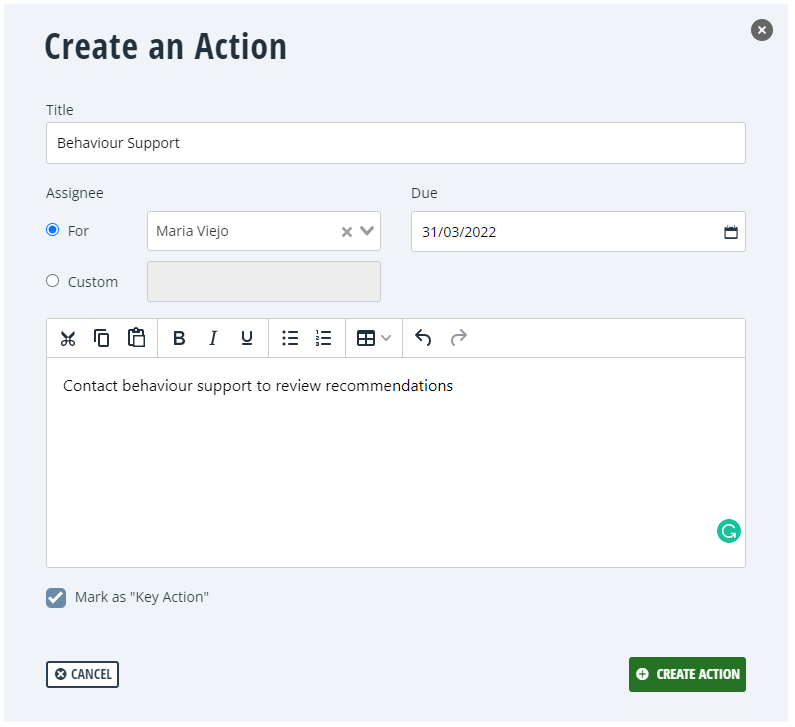
Give your action a title and select the member of staff responsible by using the Assignee section. By default, your assignees will be staff members in your Observatory account; however, if the person responsible for the action works at the school or is not an Observatory user, click Custom and type their name in manually.
Use the date picker to select a deadline for your action.
Add any additional detail about your action to the large text box. Like visits, you can add as much or as little detail here as you require. It's just like word, and you can add tables and formatting.
To mark an action as a higher priority, you can tick the Mark as "Key Action" box. This is a simple internal flag for you to identify actions that may be more urgent, impactful, or have a higher priority than others.
When you have finished, click Create.
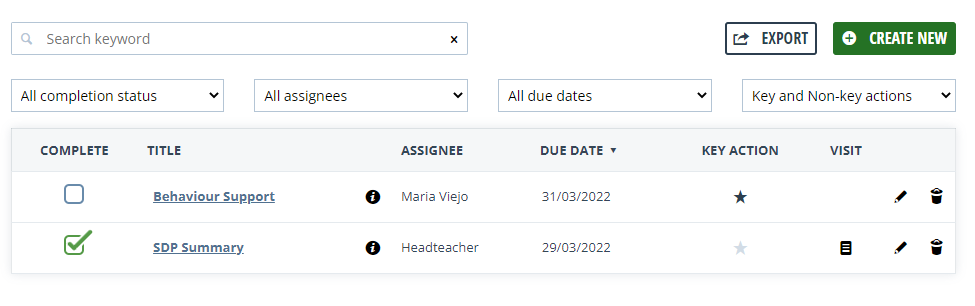
Your action will then be displayed in the list and can be marked as complete, edited or deleted at any time.
Viewing Actions
You can view actions from one of two places inside Observatory. The first is the Actions Dashboard. For more information on that area, please refer to this guide.
You can also view actions for specific schools by navigating to the school dashboard and clicking the Actions tab.
Please Note: Actions attached to visits are not visible to anyone other than the visit author when the visit is in draft. When the record is finalised, the assigned actions will become available to users with the relevant access.
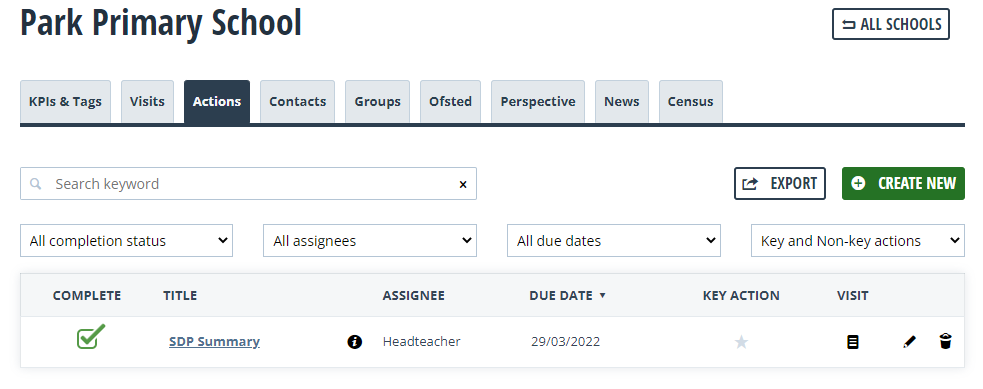
Depending on the number of actions assigned to that school, you may need to search for it. You can type in the Search keyword field to narrow down your search. You can also use some built-in filters to filter on completion status, assignee, due date and key vs non-key.
Any actions assigned to visits will contain a file icon in the Visit column. Clicking this icon will download a PDF copy of the visit that the action is assigned to.
To edit an action, click the pencil icon, or if you need to delete an action, click the bin icon.